Usage Example#
This guide demonstrates how to use the B2B Call Tester tool to create a temporary CMS space and connect to it using different call methods.
Creating temporary space#
Click on Create button to create a temporary CMS space.
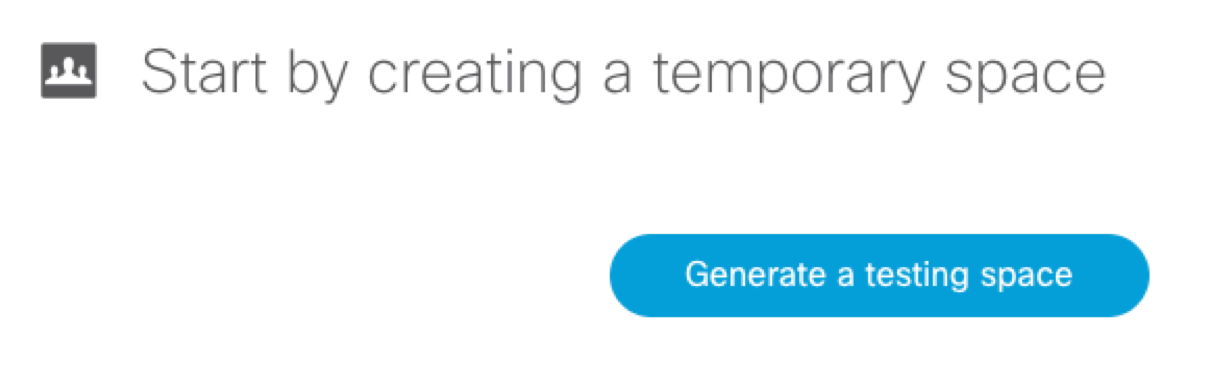
After it is successfully done, you will be presented with multiple options to connect to it. Please note the remaining time after which the CMS space will be automatically deleted and calls disconnected.
Call me#
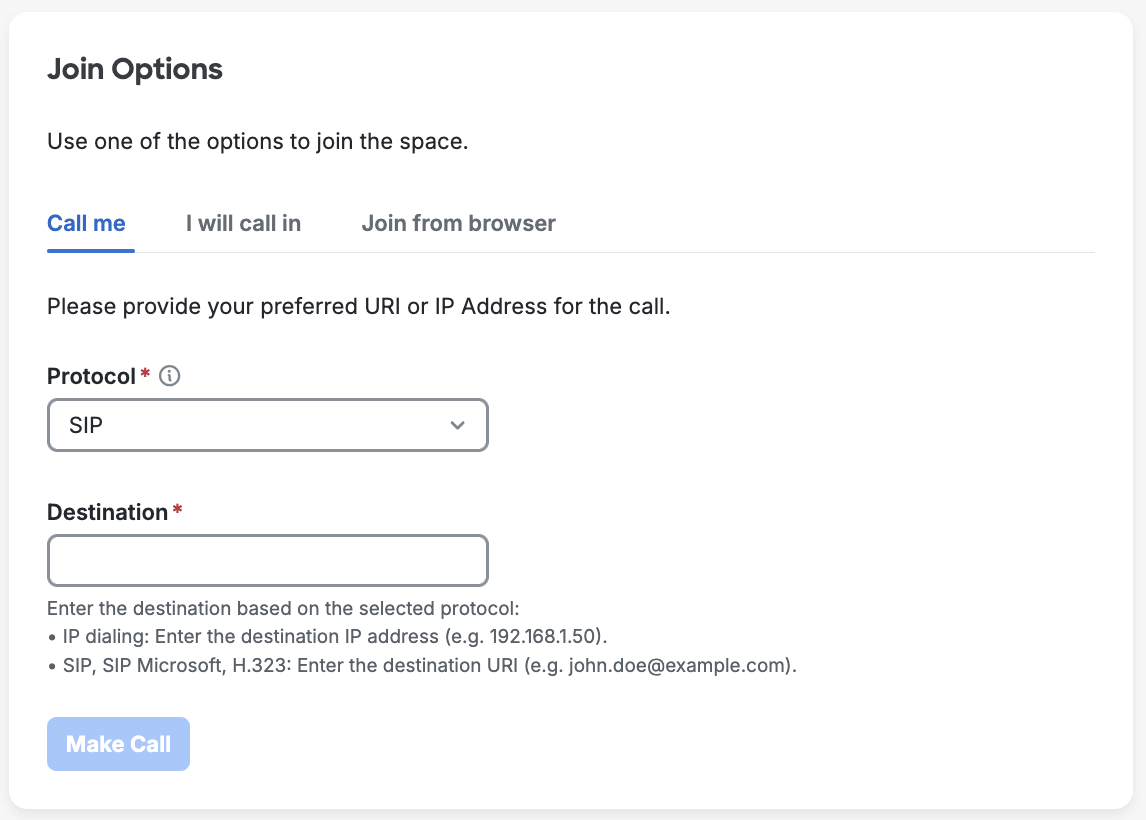
Type in your destination URI or address and select a call protocol.
SIP - call to any Cisco or standard SIP device
Microsoft SIP - call to Skype for Business / Office 365 deployments
H.323 - call to any H.323 device using URI
IP dialing - H.323 call to an IP address
I will call in#
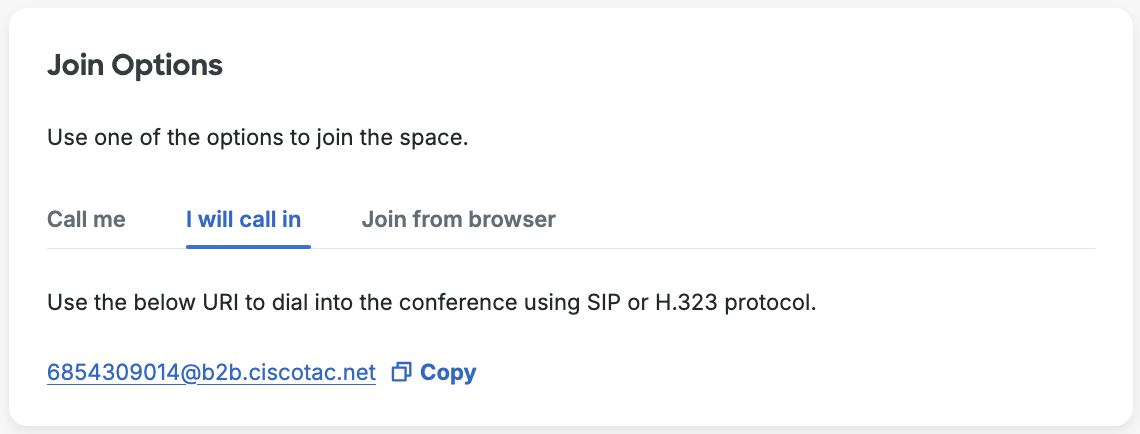
Use any SIP device to dial to the generated SIP URI, both standard SIP and Microsoft SIP are supported.
Join from browser#
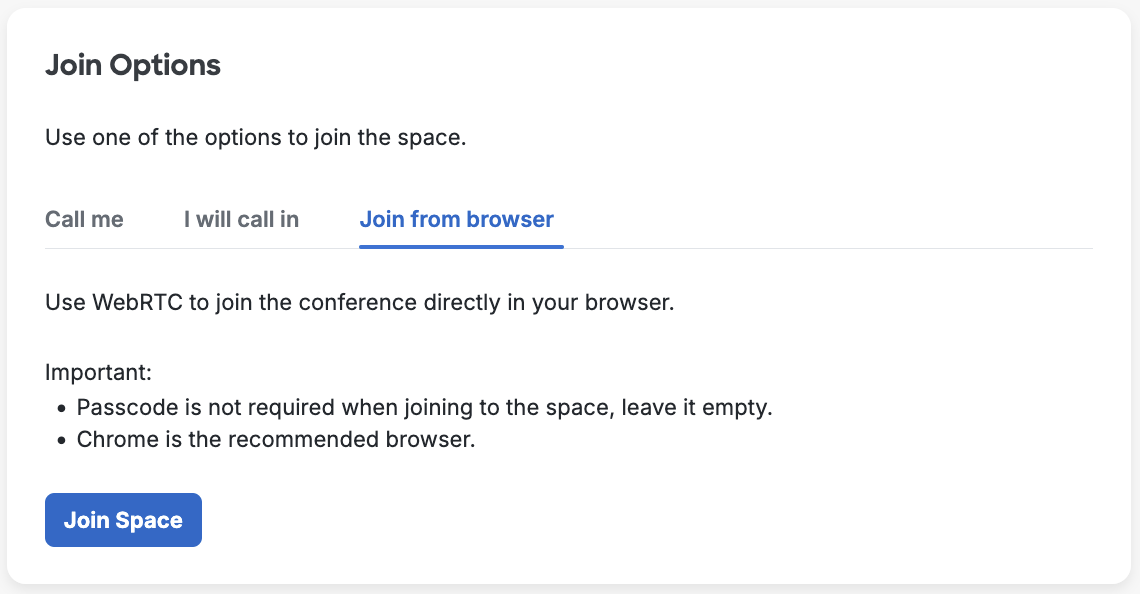
Use CMS WebRTC connection feature that allows you to join as guest participant to a CMS space. Passcode is not required when joining the space, leave it empty, however enter your name when prompted. Use Chrome browser for correct functionality.
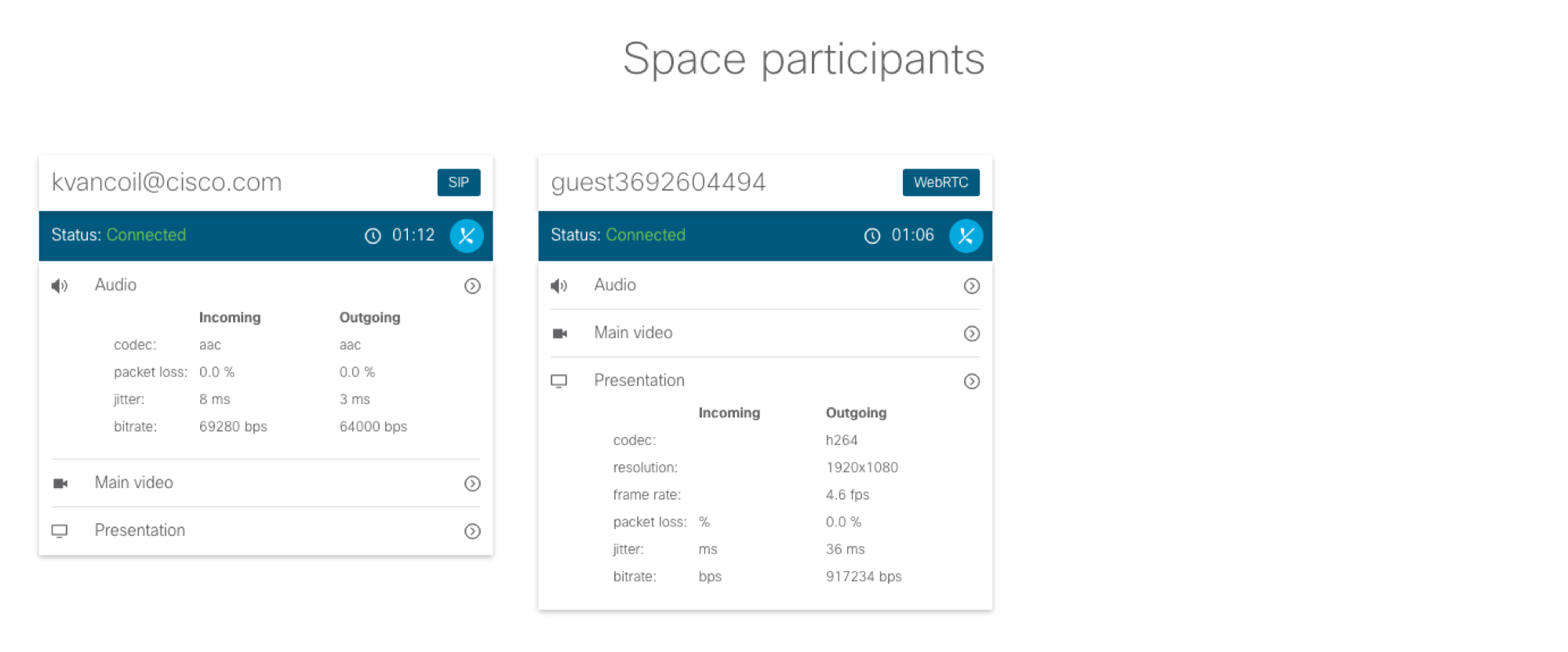
Space participants#
Once a participant is added over Call me function or has connected through a Call-in or WebRTC, it will be listed in the Session Participants section. For each participant there will be the following information displayed:
connection method (Call-in, dial-out protocol, WebRTC)
connection state
SIP URI
call duration
media statistics (codec, packet loss, jitter, etc.)