Usage Example#
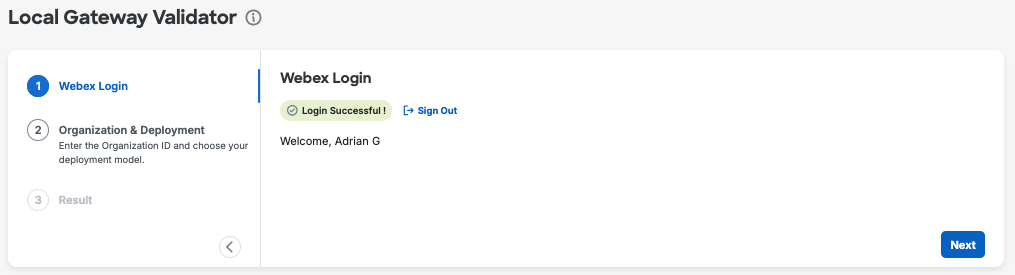
This guide demonstrates how to start the Local Gateway Config Validator and provide the initial inputs required to begin validation.
Important
To proceed with validation, your account must have administrator privileges for the organization.
The following two examples cover both deployment types: Webex Cloud managed gateway and On-premises managed gateway. For each deployment type, Webex Organization ID is a mandatory field. Enter the Organization ID associated with your Webex Calling deployment.
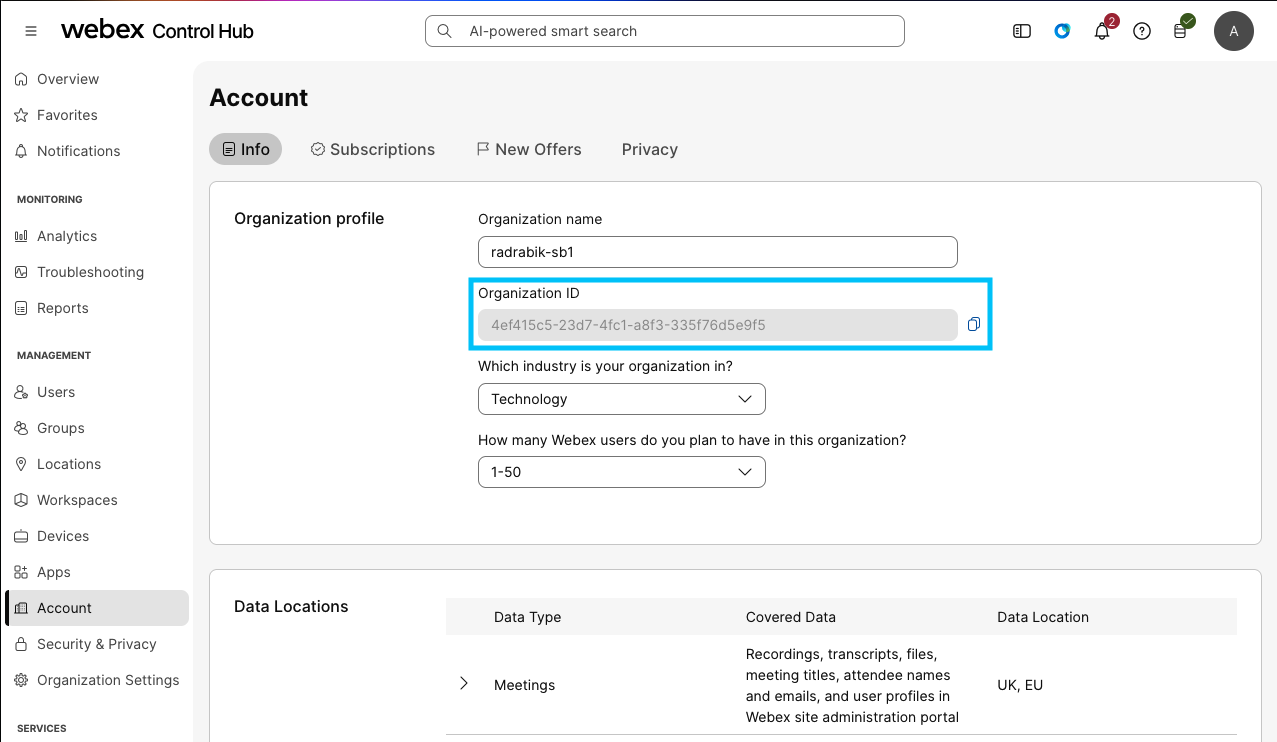
Webex Organization ID#
Webex Organization ID is a unique identifier for your Webex Calling deployment. You can find your Organization ID in the Webex Control Hub under Account > Info > Organization ID.
Once you enter the Organization ID, select the deployment type.
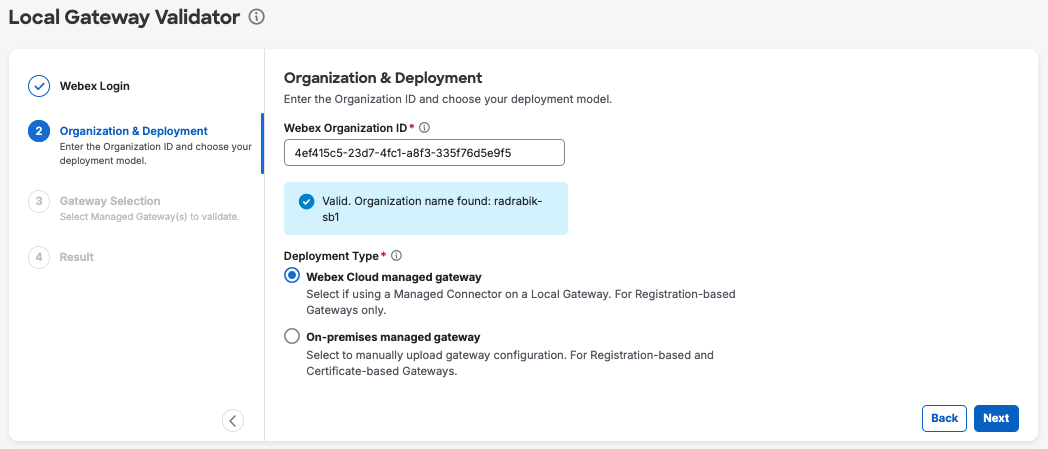
Webex Cloud managed gateway#
The Webex Cloud managed gateway deployment automatically fetches the available gateway list after pressing the next button.
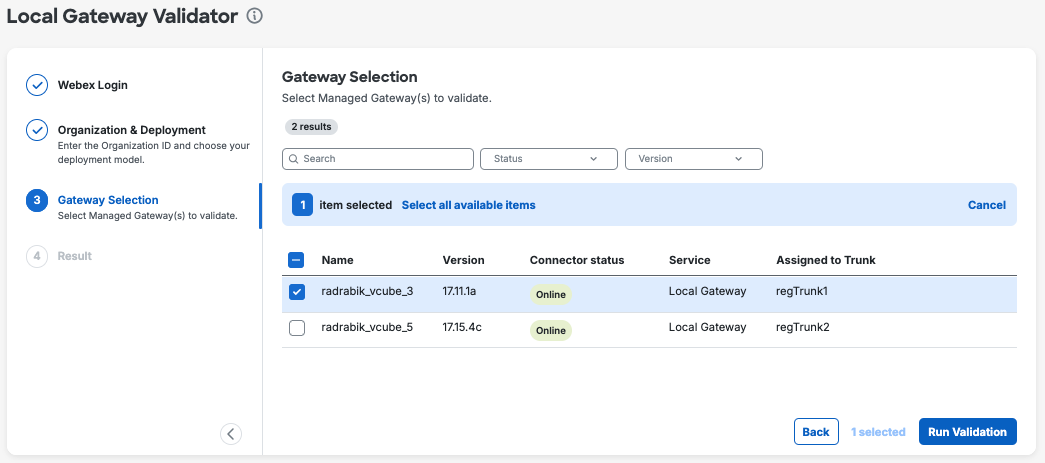
Select the gateway you would like to validate and press “Run Validation”.
On-premises managed gateway#
The On-premises managed gateway deployment allows you to manually upload the gateway configuration for validation, which is suitable for both registration-based and certificate-based gateways. Collect the SSH output of the following command:
show running-config
from your Local Gateway device and save it as a text file. Then upload the file in the tool for analysis. For multiple gateways, upload one individual file per gateway.
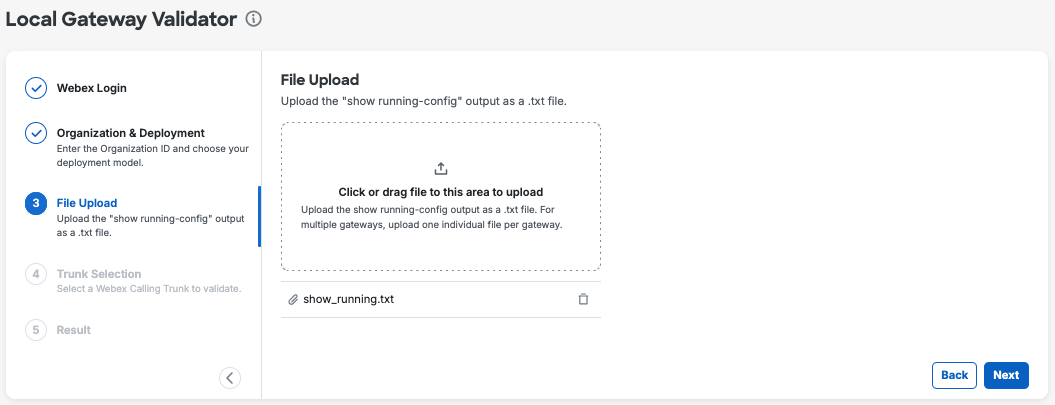
Select the uploaded filename, choose the trunk associated with that gateway from the list retrieved from Webex Control Hub, and press “Run Validation”.
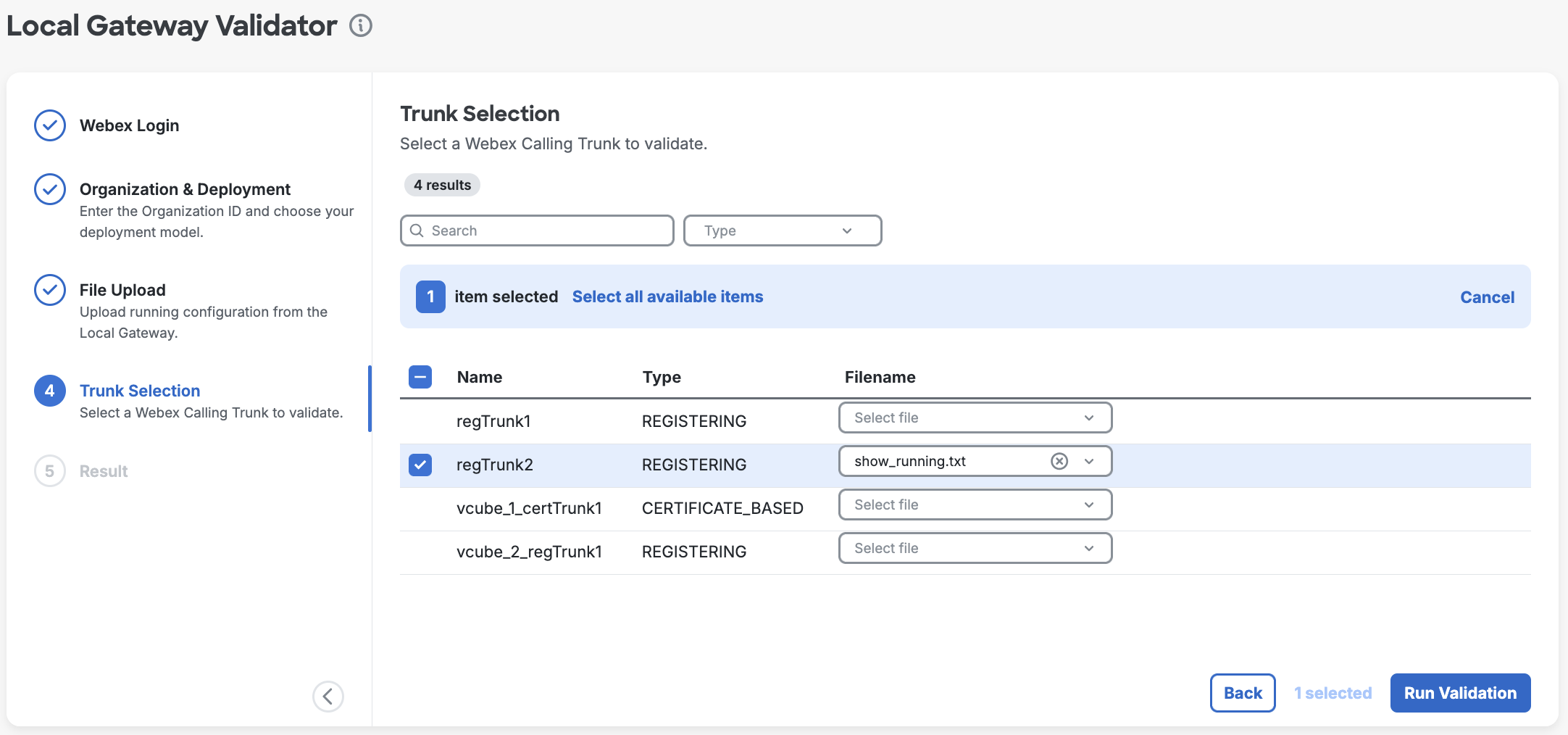
Analyzing the results#
Once analysis completes, you can view or export the analysis results.
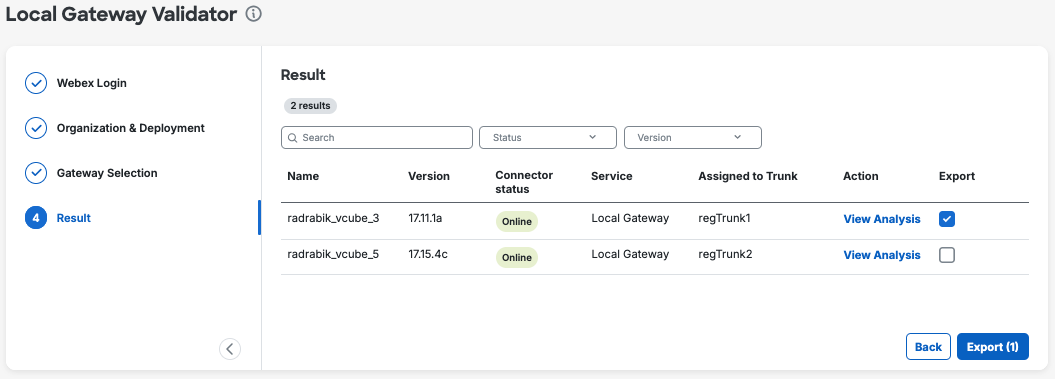
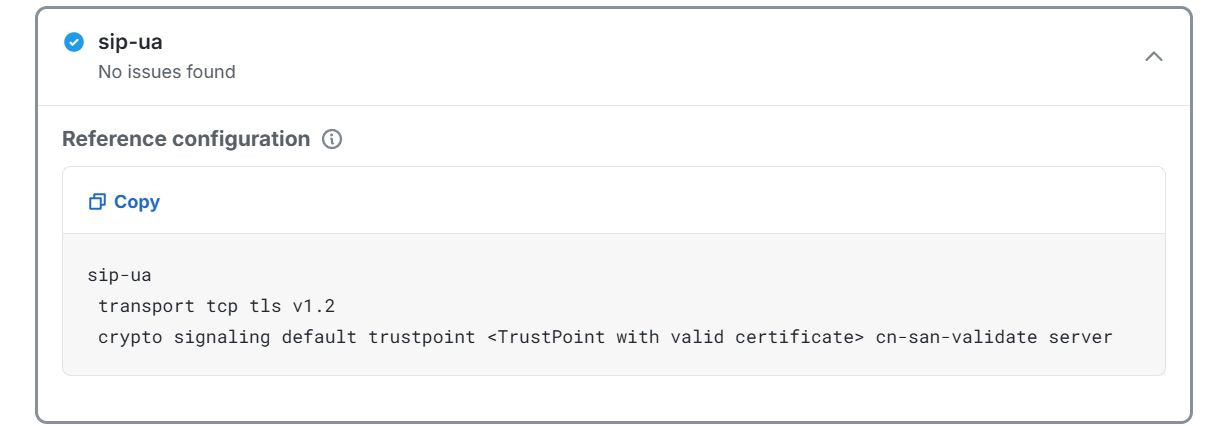
No issues found
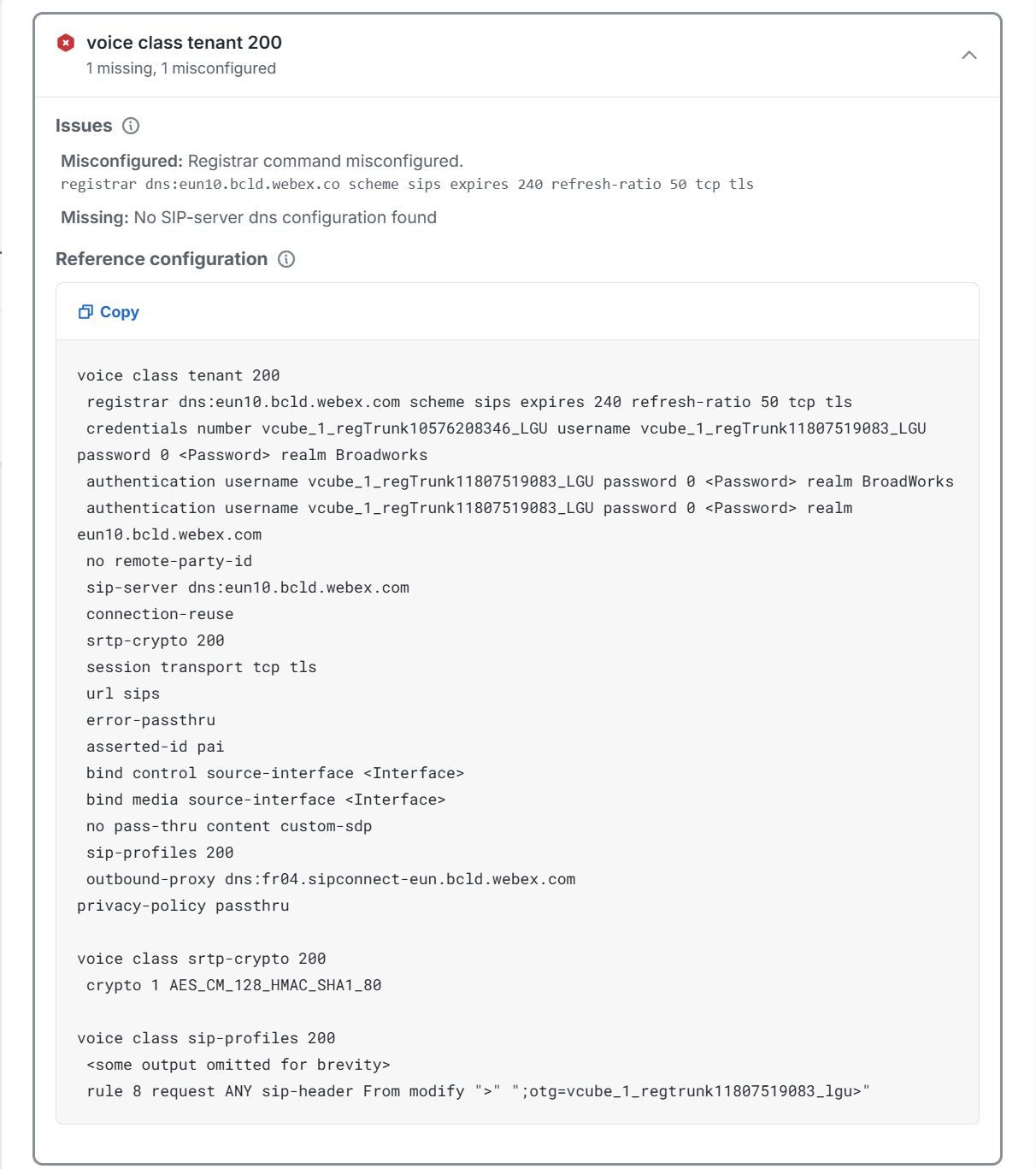
Missing - some of the commands are missing from configuration.
Misconfigured - the command is in place but with invalid parameters.
Misordered - the command is in place but with wrong order (typically seen for sip profiles)
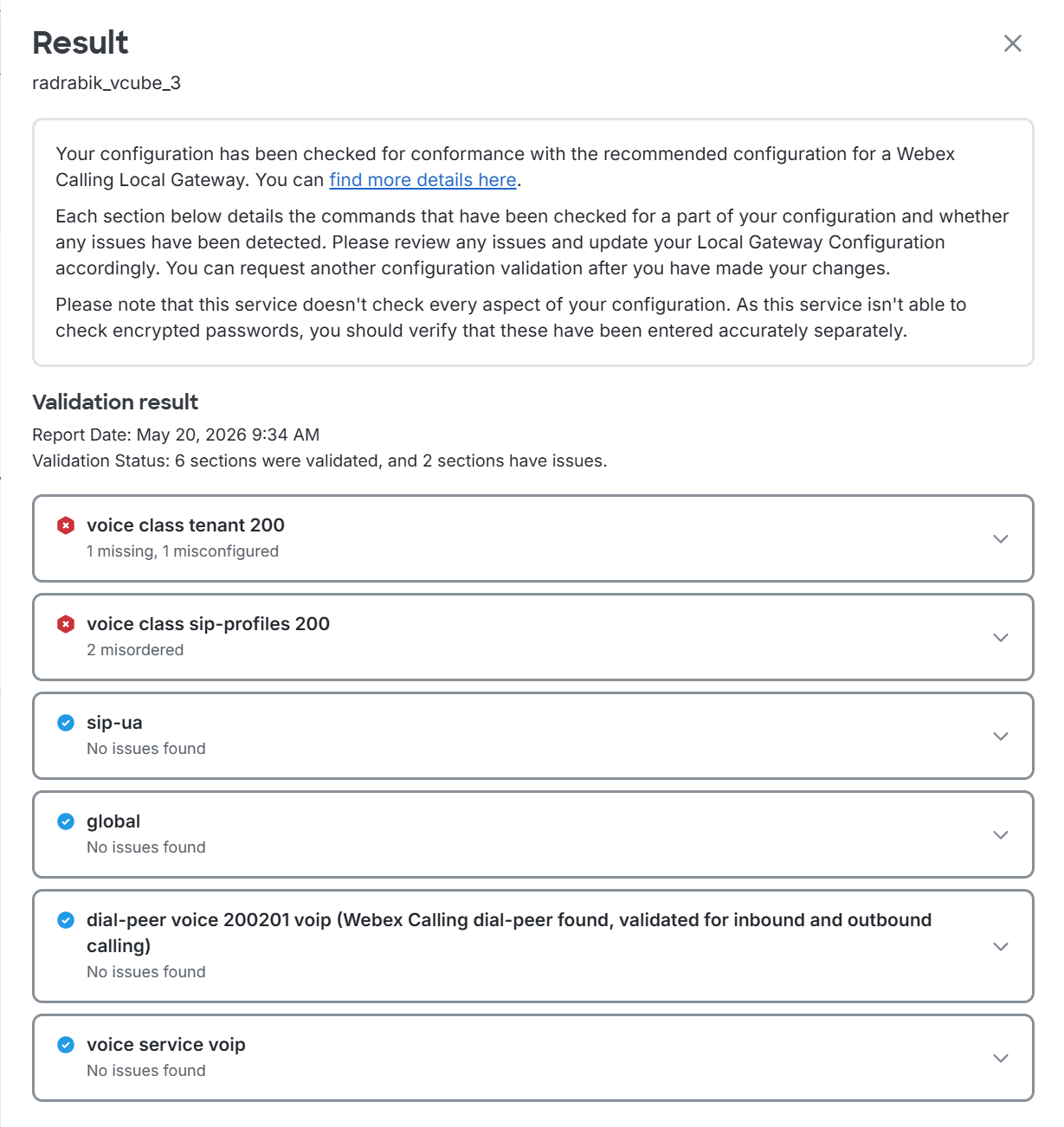
Expand each section to review the details of the validation and any potential issues identified.
Example: No issues found
Example: Missing & misconfigured
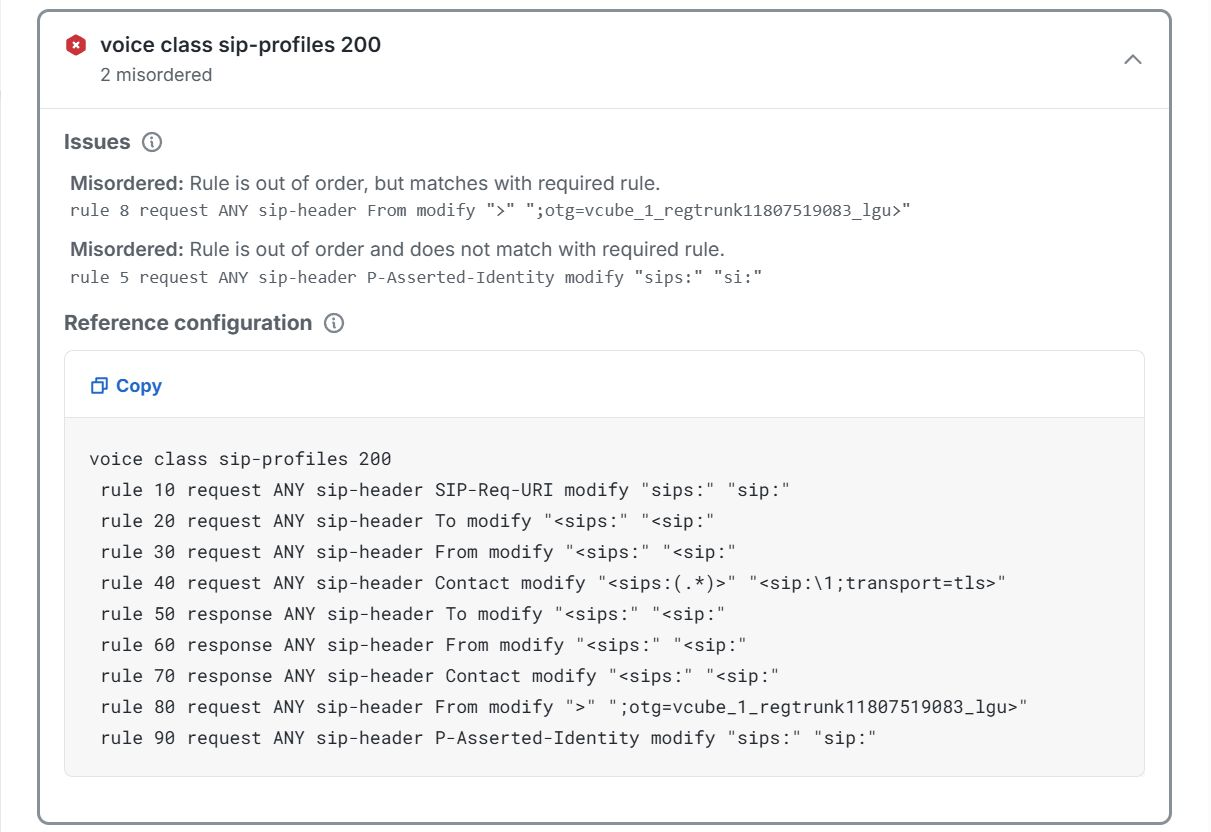
Example: Misordered