Usage Example#
In this example, we will use the domain tp.ciscotac.net to demonstrate how SRV Checker works. After entering this domain, the tool runs its checks and generates a detailed report.
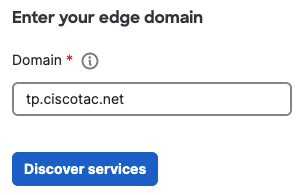
Below you can find a sample output for the domain tp.ciscotac.net.
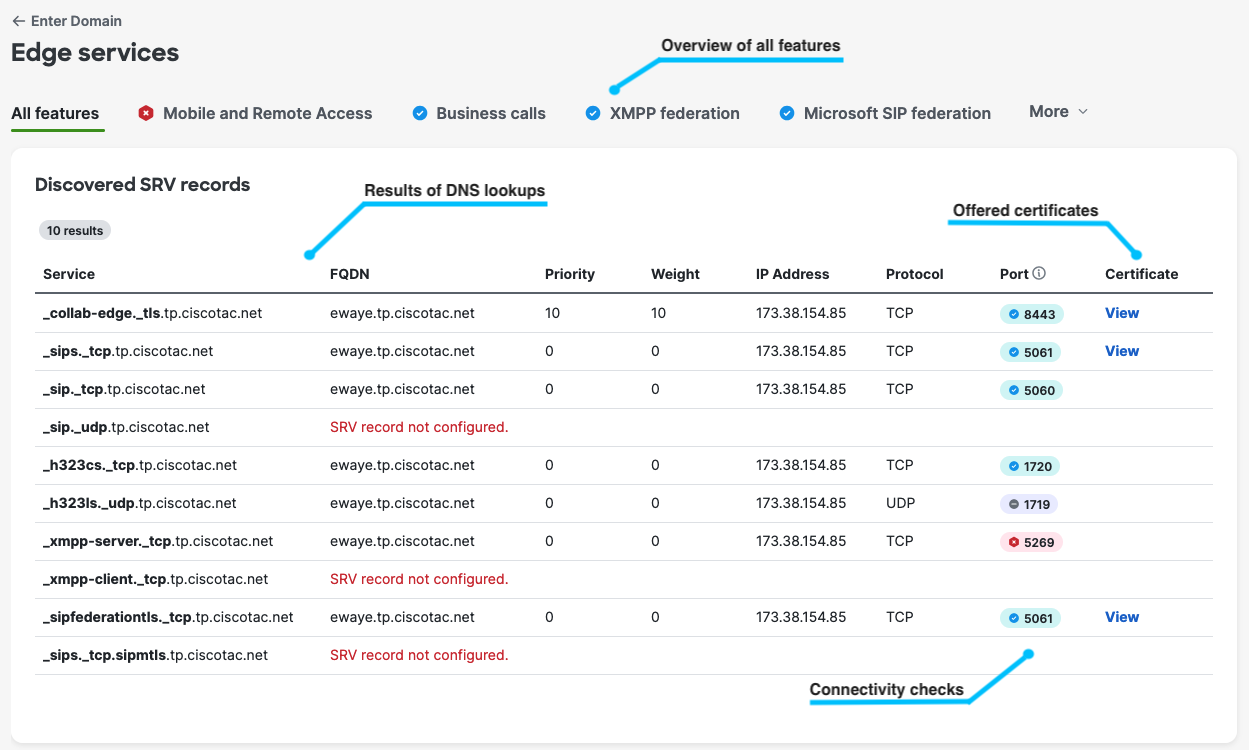
Collaboration features validation#
The first part of the results provides an overview of your domain’s Cisco Collaboration deployment features. SRV Checker automatically discovers relevant DNS entries and performs connectivity checks for each supported feature. This section summarizes which collaboration features are available, based on the current DNS configuration and network accessibility. You can quickly identify which features are properly set up and which may require attention before proceeding with further troubleshooting or deployment.
Feature specific checks#
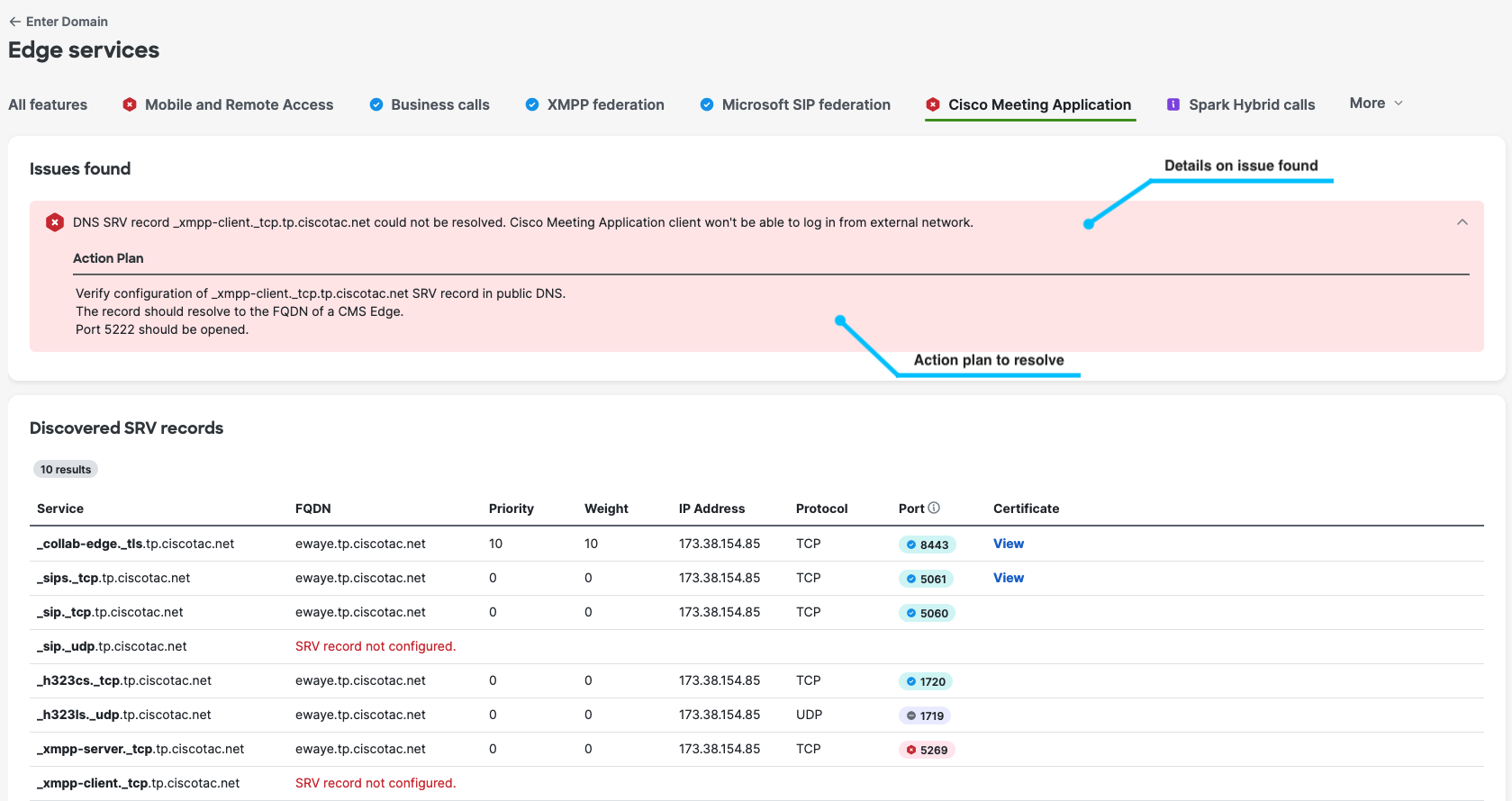
Feature with issue
When you select a feature that has been evaluated as having issues, the tool displays the identified problems and provides an action plan to help you resolve them—if the feature is expected to work in your deployment.
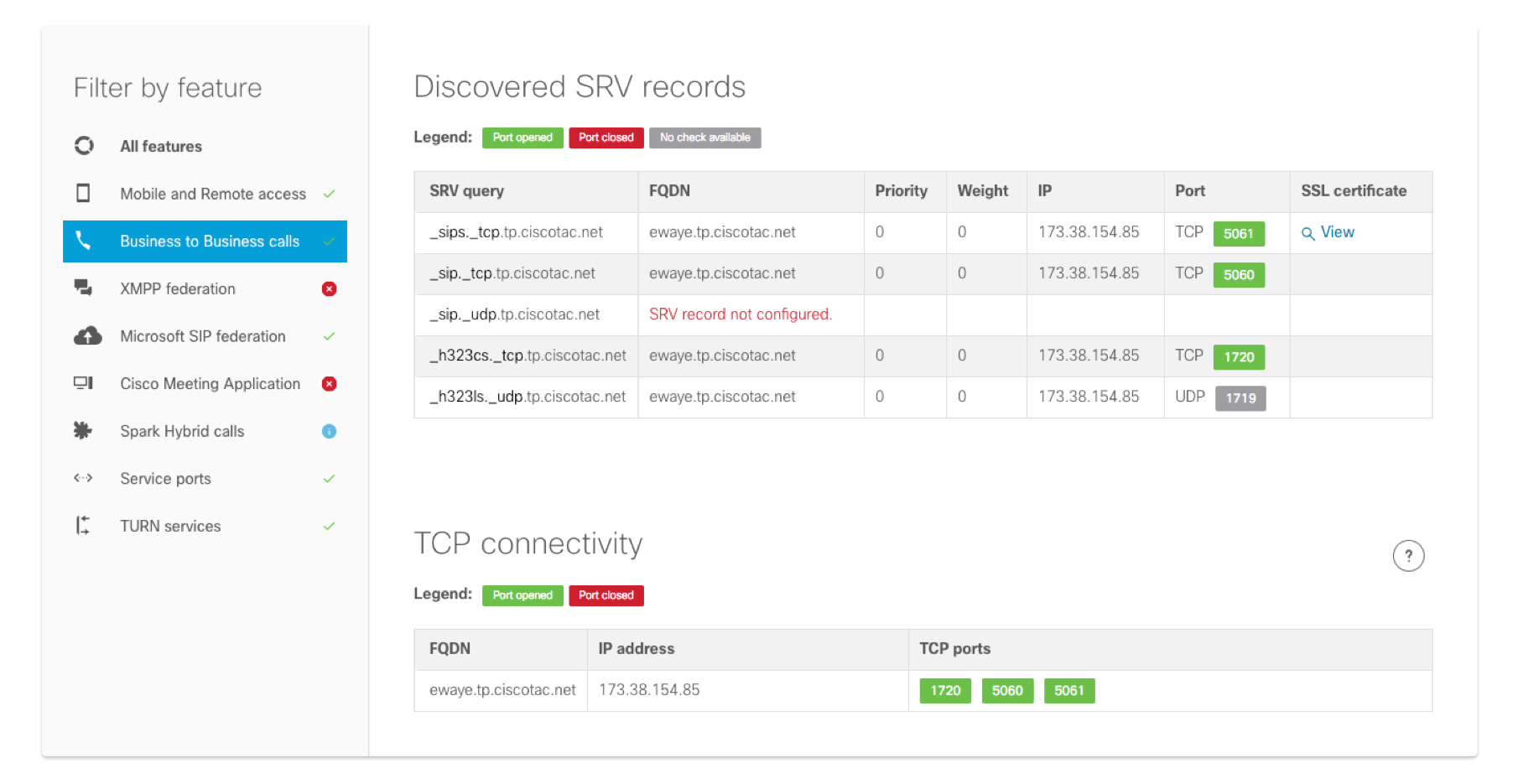
Feature without issues
When you select a feature that has no detected issues, the tool displays all relevant details for that feature.
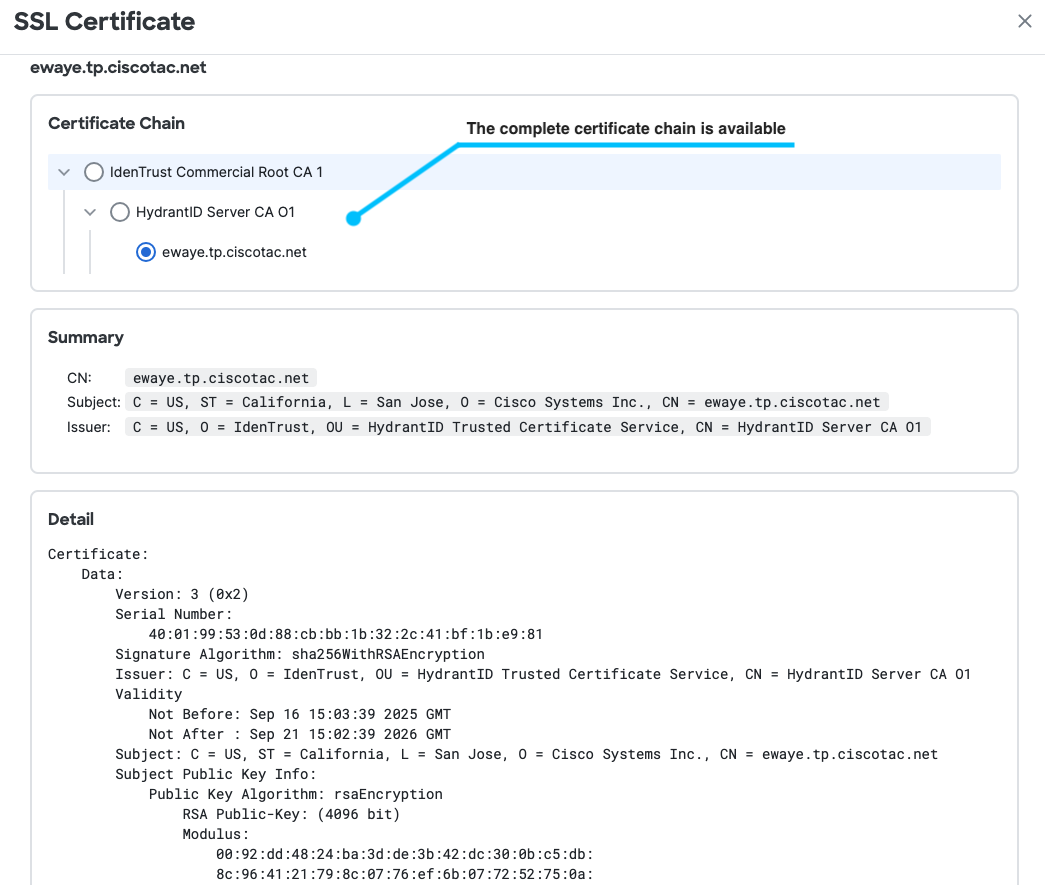
Certificate view
When a certificate is successfully retrieved, you can open the certificate view to see detailed information about the entire certificate chain.